

Joining your organisation on Elect Peace
Find your organisation in the directory and become part of its team.
Elect Peace works best when your whole team is on it. Once you are affiliated with (linked to) your organisation, you can post, blog and manage projects on its behalf. You ask to join from your dashboard — not from the organisation's public page. Here's how.
Find your organisation
1. Click Organisations in the top menu.
This opens Discover Organisations, the directory of CSOs on the platform. More than 200 organisations are already listed.
2. Search or filter.
Type a name or keyword in Search, or narrow the list by Thematic Area, Country and Region. Then click Search. You can sort the results with Newest first.
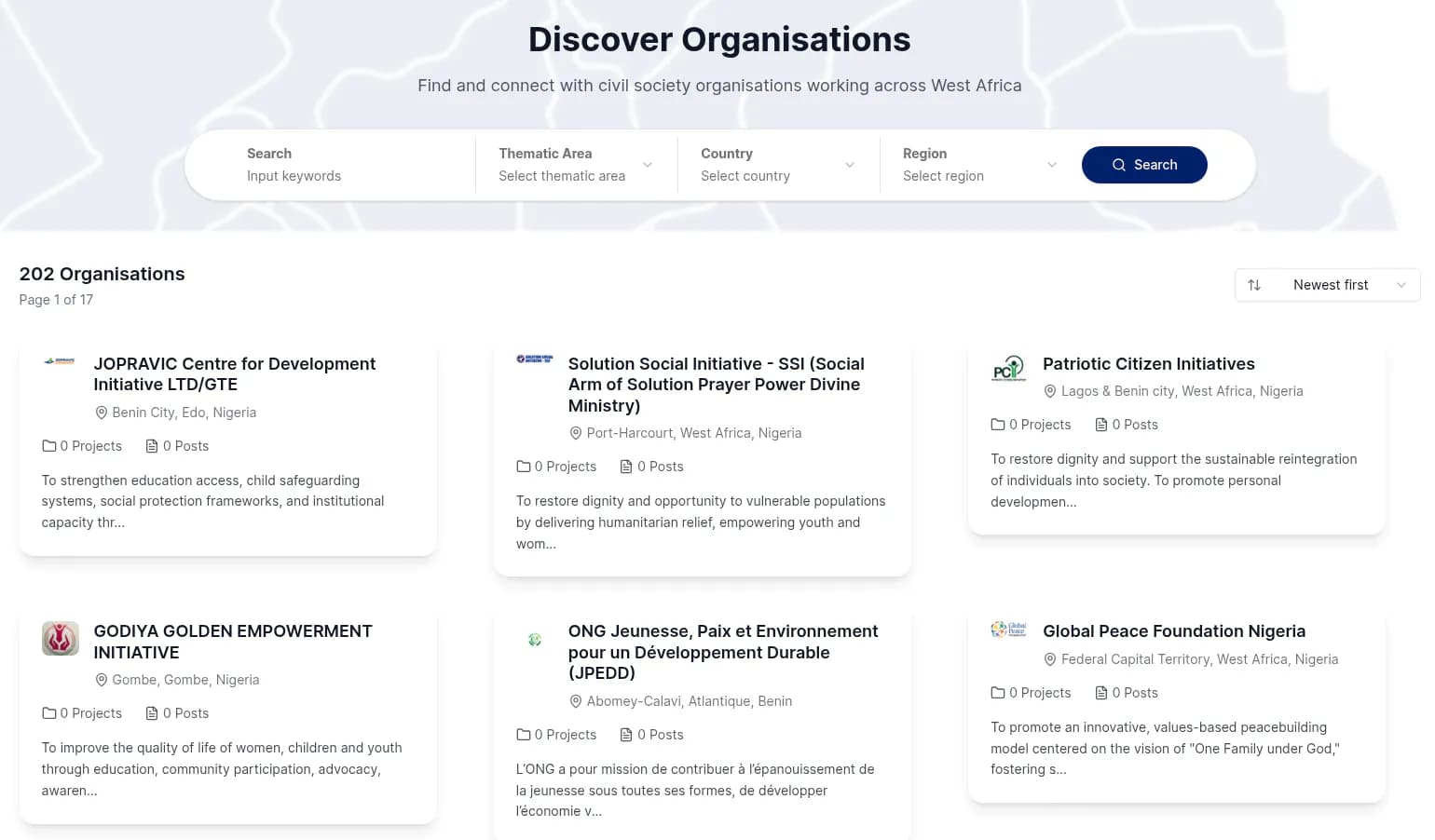
3. Open your organisation's page.
Click its card. The public page has three tabs: About organisation, Stories and Projects. You can also click Share profile to send the page to someone. There is no join button on this page.
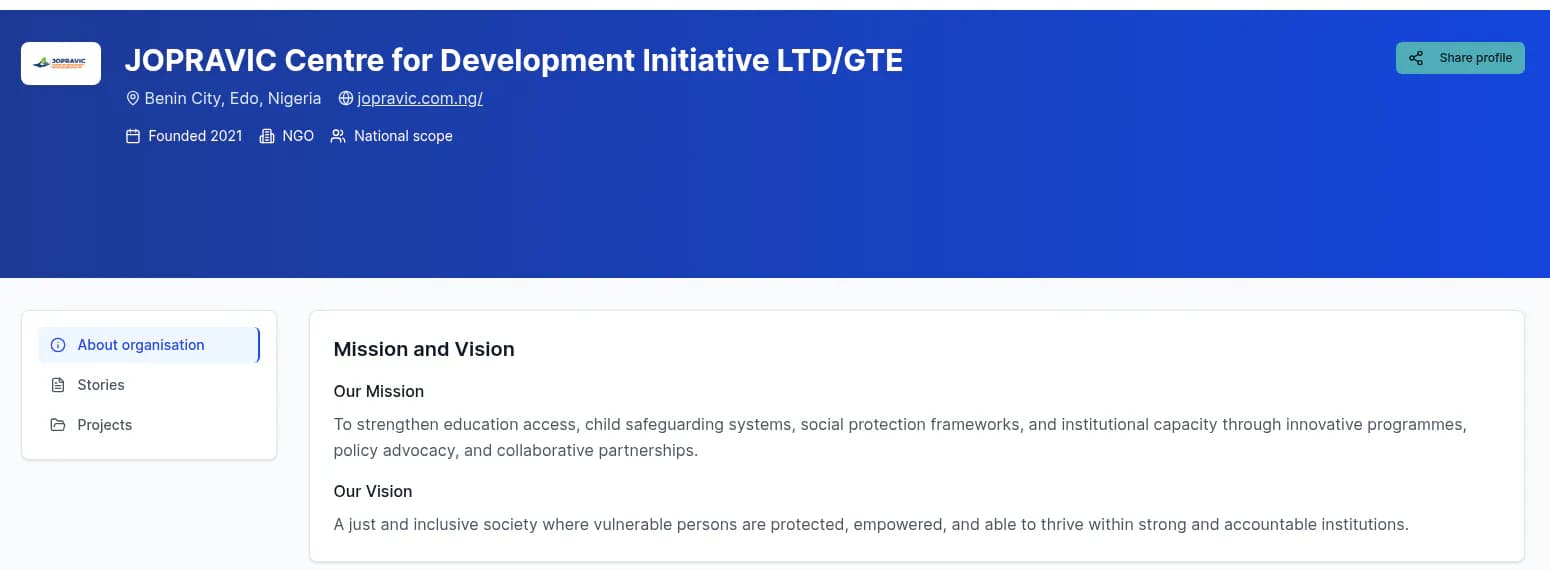
Ask to join from your dashboard
4. Log in and look at Organisation Status.
If your account isn't linked to an organisation yet, the dashboard shows No Organisation Linked, with two buttons: Register Organisation (to create a new organisation) and Join Organisation. The first time you sign in, a short tour may also appear (Welcome to the platform, Step 1 of 4). You can take the tour or click Skip tour.
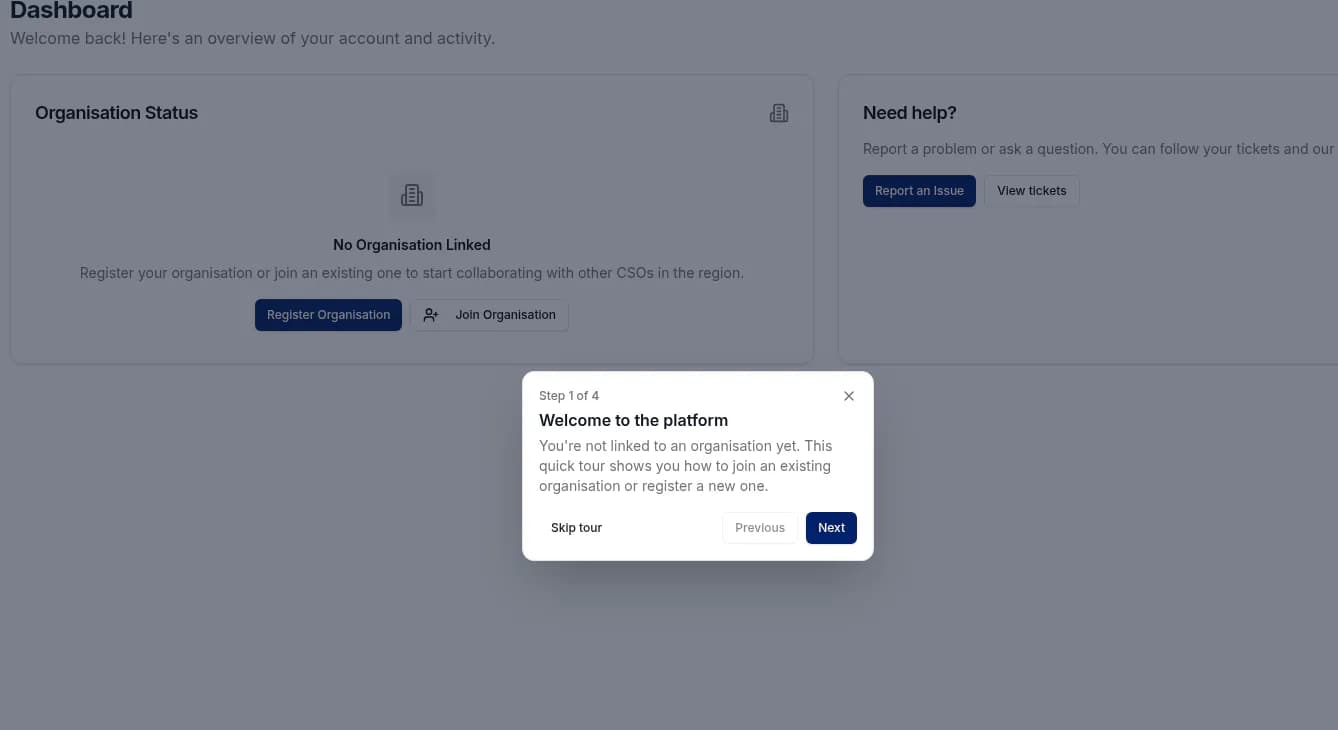
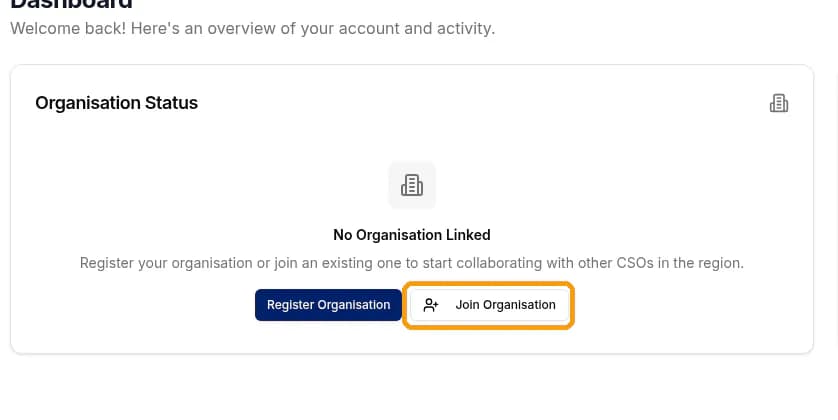
5. Click Join Organisation.
Use this button if your organisation is already on Elect Peace. Don't click Register Organisation unless you are setting up a new organisation.
6. Fill in the Request Organisation Affiliation dialog.
Search for your organisation, select it from the results, and optionally write a short Request Message so your manager knows who you are. Then click Submit Request.
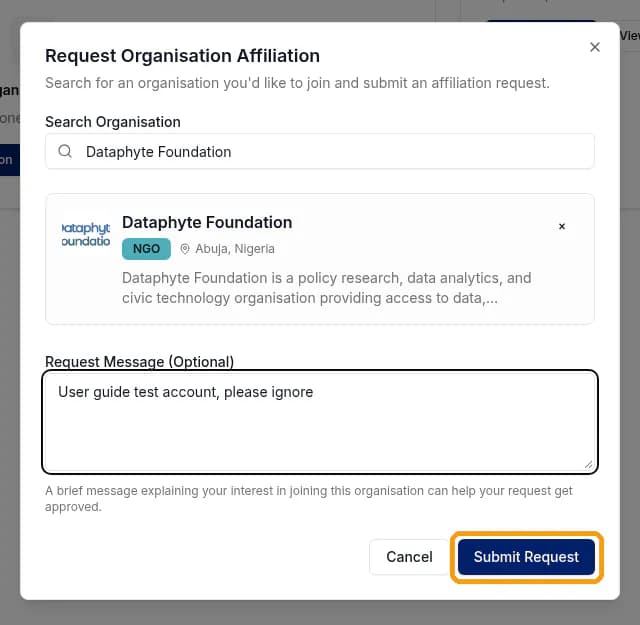
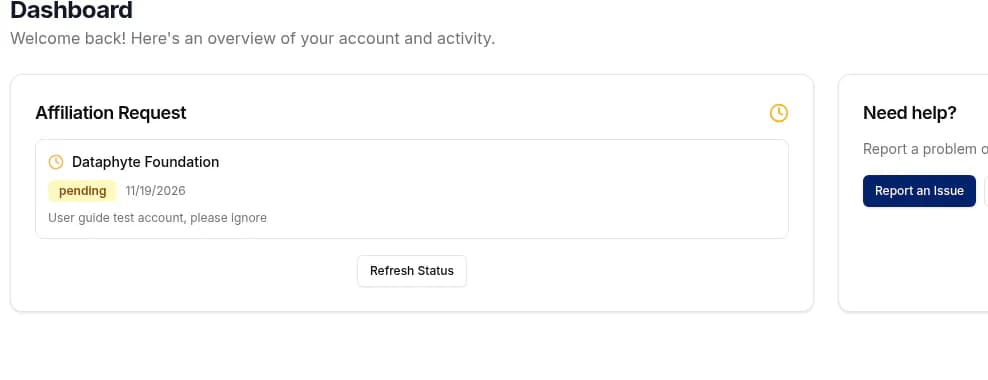
7. Wait for your organisation's manager to approve you.
Your dashboard then shows an Affiliation Request card, with the status pending. Click Refresh Status to check whether it has been answered.
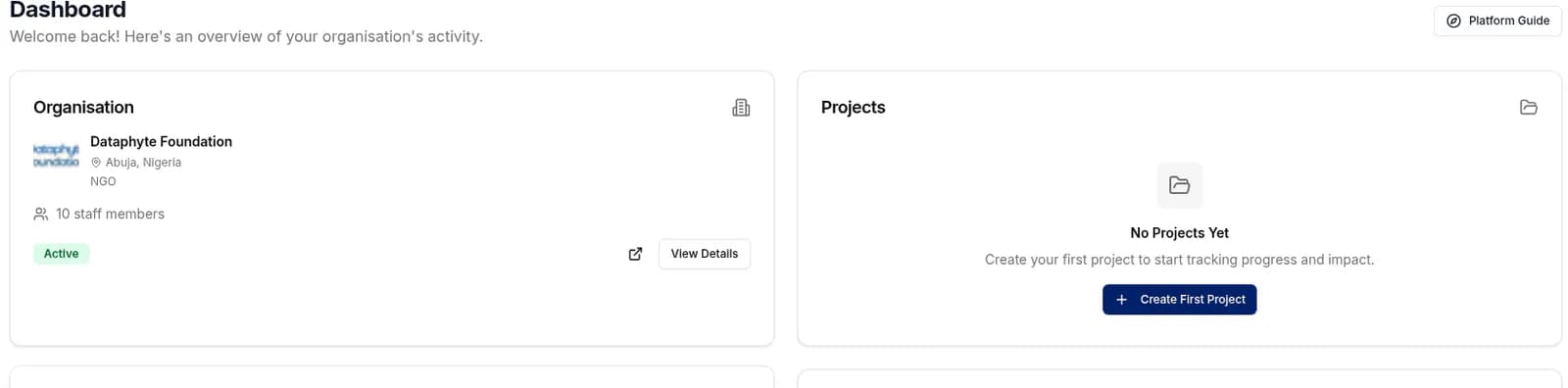
8. Once you are approved, your organisation appears on the dashboard.
The Organisation card shows the name, status (Active) and a View Details button. You can now work as part of the team.
Answering join requests (managers only)
If you manage your organisation, you will look after its team. When someone asks to join, the request appears on your Affiliation Requests page.
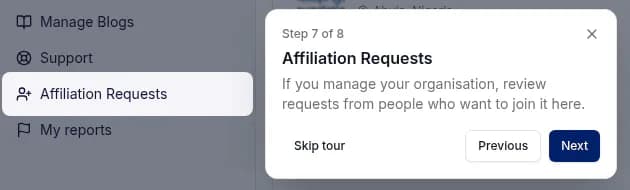
9. Open Affiliation Requests in the dashboard sidebar.
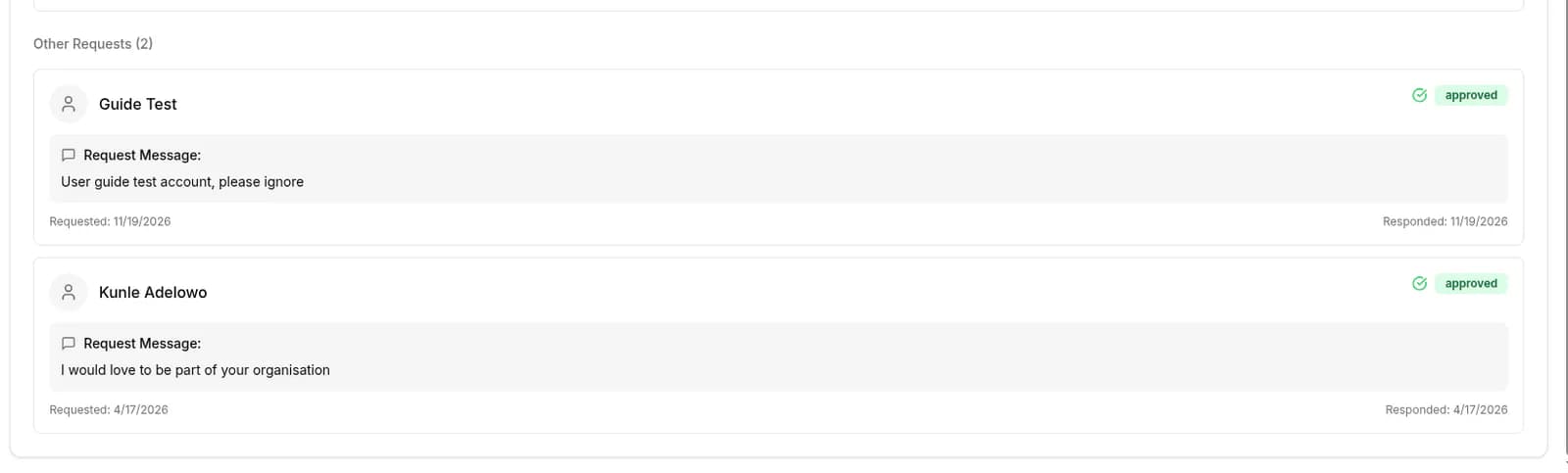
New requests are listed under Pending Requests, each with the date it was sent and a Respond button. Requests that have already been answered appear under Other Requests, with their status and the person's message.
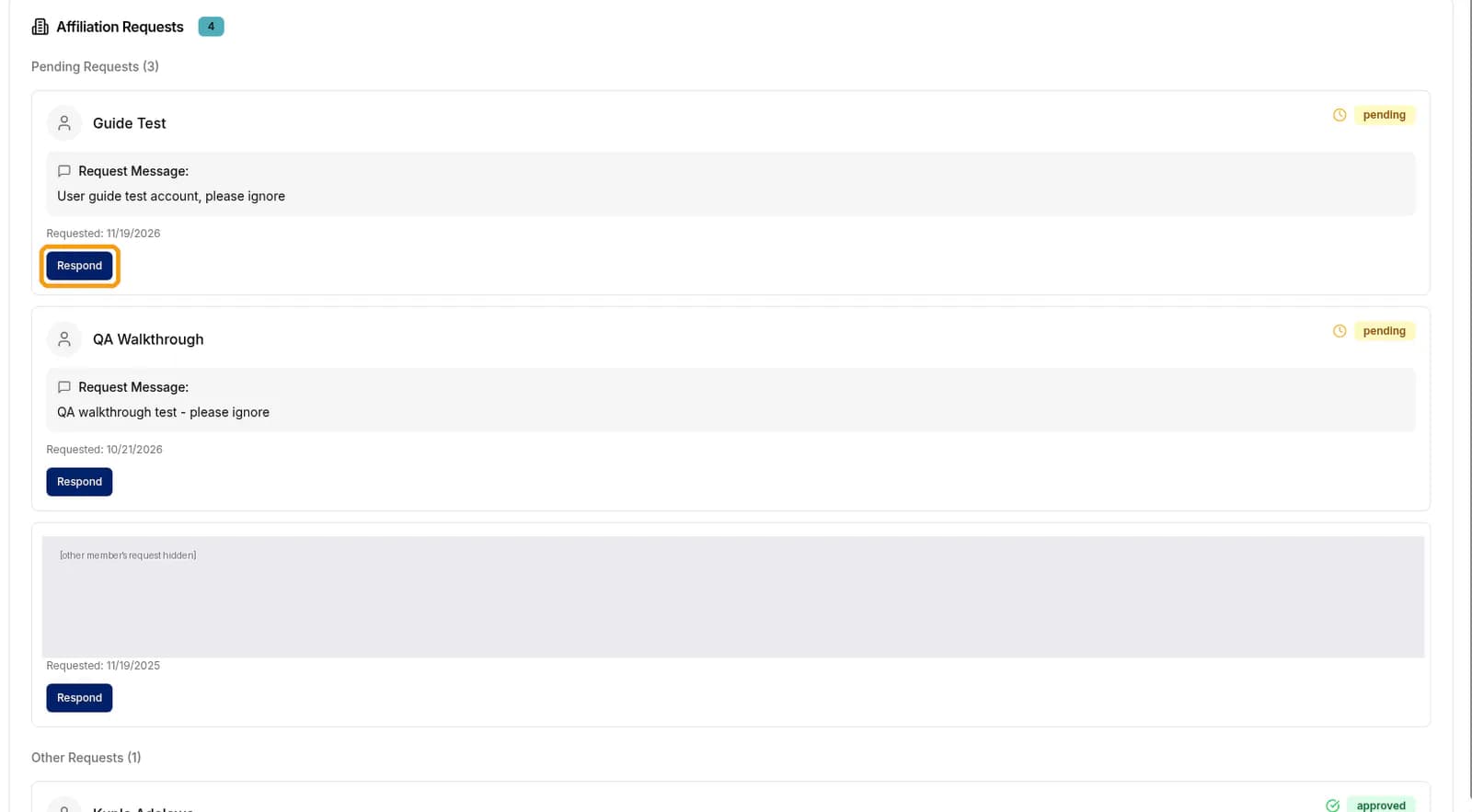
10. Click Respond to answer a request.
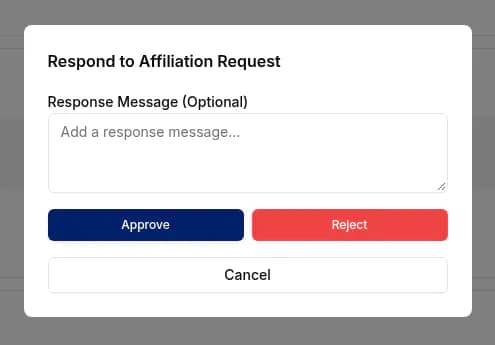
The Respond to Affiliation Request dialog opens. You can add an optional Response Message, then click Approve or Reject. Click Cancel if you are not ready to decide. Only approve people you know work with your organisation.
11. After you approve, the request moves to Other Requests.
It is listed there with the status approved, the original request message, and the date you responded.
💡 Quick tips
- Can't find your organisation in the directory? Try a shorter search word, or clear the filters. If it still isn't there, click Report an Issue (see Post 9) and choose Account or organisation profile.
- Join from the dashboard with Join Organisation, not from the public organisation page.
- Add a short, friendly message to your request so your manager knows who you are.
- Managers: check Affiliation Requests regularly so new colleagues aren't kept waiting.
Next up: Your dashboard and organisation profile → · ← Back to index