

Getting started: sign up, log in and reset your password
Create your account the right way and get back in if you forget your password.
Creating your Elect Peace account takes about two minutes. There is one small trap to avoid on the way, and this post shows you how to step around it.
Sign up
1. Open the home page and click Join as Organisation.
Go to www.electpeace.org. In the big banner at the top, click the dark blue Join as Organisation button.

⚠️ Watch out: the Register button at the top-right of the page opens the Login page, not the sign-up form. To create a new account, use Join as Organisation. If you do end up on the Login page, click Sign up under the Login button.
2. Fill in the Sign up form.
Enter your Name, your Email and a Password, then type the same password again in Repeat Password.
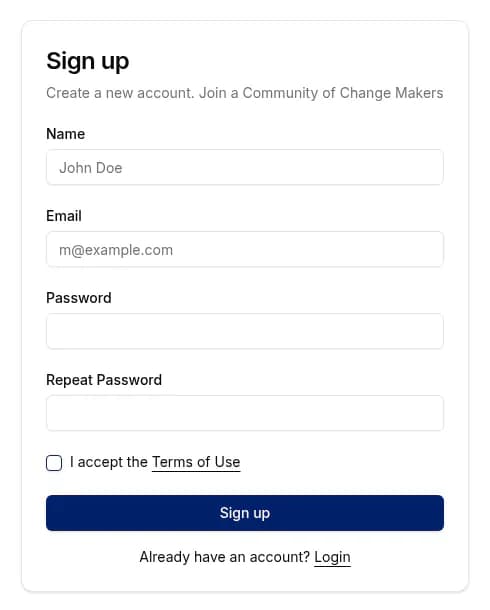
3. Accept the terms and click Sign up.
Tick I accept the Terms of Use (you can click the link to read them first), then click Sign up.
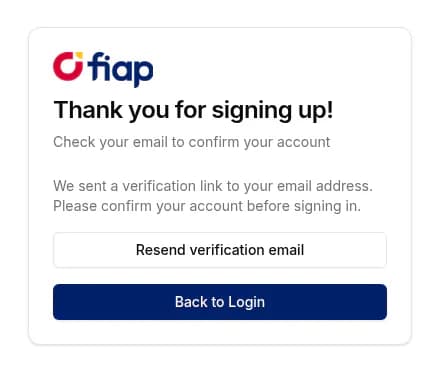
4. Confirm your email.
You will see a confirmation: Thank you for signing up! Elect Peace has sent a verification link to your email address. Confirm your account before you sign in. If the email doesn't arrive, click Resend verification email. When you are ready, click Back to Login.
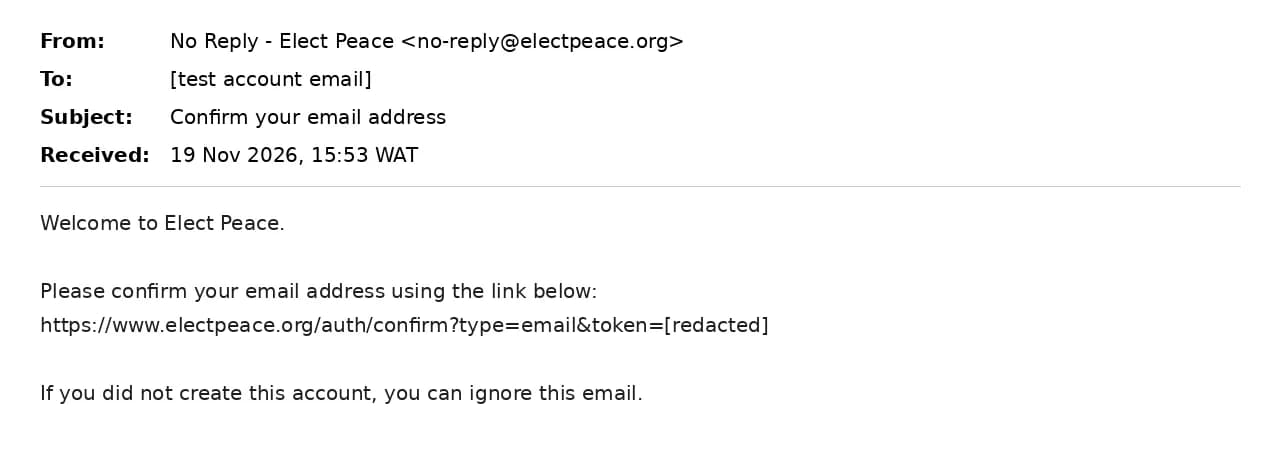
Open the message from No Reply - Elect Peace. The subject is Confirm your email address. Click the confirmation link in the email.
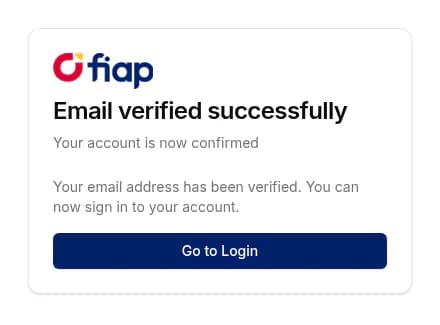
You will land on a page that says Email verified successfully. Click Go to Login.
Log in
5. Open the Login page.
Click Register at the top-right of any page. It opens the Login page. You can also click Login under the Sign up form, or Go to Login after your email is verified.
6. Enter your email and password, then click Login.
You will land on your Dashboard. If you are not linked to an organisation yet, a short tour may appear and the dashboard will show No Organisation Linked — Post 2 shows you what to do next. Post 3 explains the dashboard once you are part of a team.
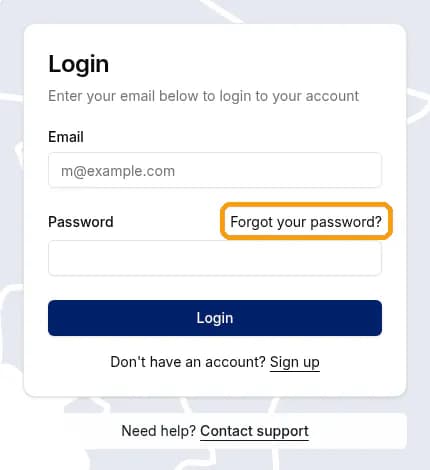
Forgot your password?
7. Click Forgot your password?
It is on the Login page, next to the word Password.
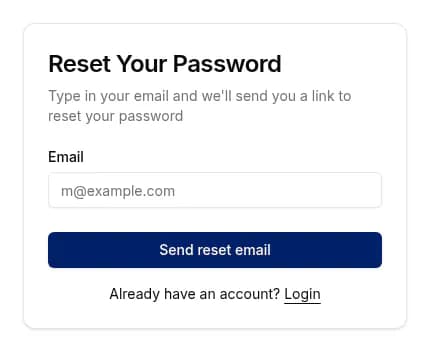
8. Enter your email and click Send reset email.
Elect Peace sends a link to that address. Open the email and follow the link to choose a new password.
💡 Quick tips
- Sign up with Join as Organisation, not Register. Register opens the login page.
- Use an email address you check often. Your verification link and password reset link both go there.
- Don't see the verification or reset email? Check your spam or junk folder, or use Resend verification email.
- Stuck at login? Click Contact support under the login box. Never share your password with anyone, including support.
Next up: Joining your organisation → · ← Back to index