

Your dashboard and organisation profile
Find your way around the dashboard and keep your profile up to date.
Your dashboard is your home base on Elect Peace. It shows how your organisation is doing at a glance, and its sidebar takes you to every tool you need. Your organisation profile is the public face of your work, so it is worth keeping it fresh.
Find your way around the dashboard
1. Log in. You land on the Dashboard straight away.
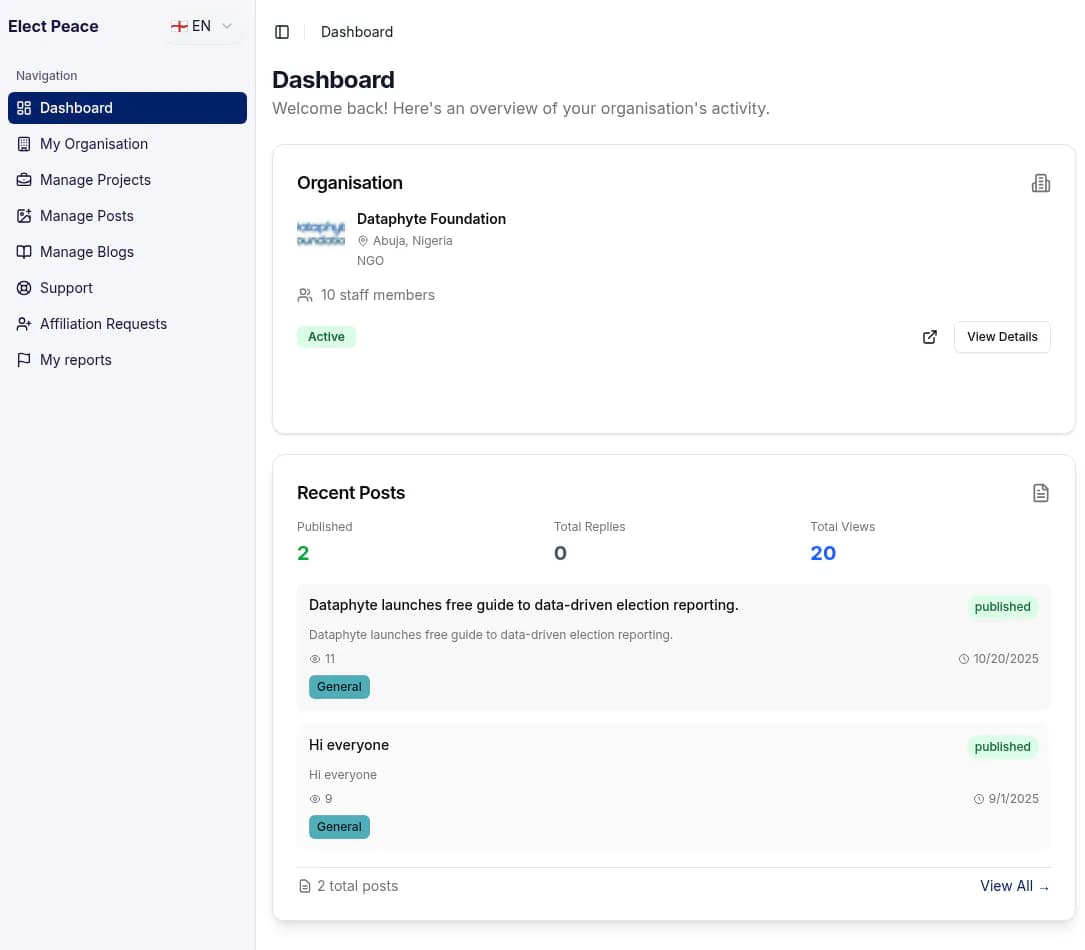
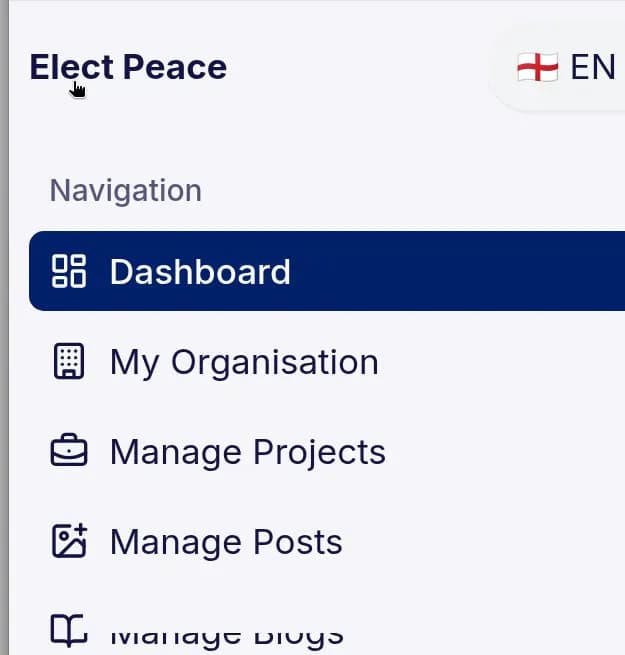
2. Use the sidebar to move around. Under Navigation you will find:
- Dashboard: your overview page.
- My Organisation: your organisation profile (see below).
- Manage Projects: your projects (see Post 4).
- Manage Posts: your forum posts (see Post 5).
- Manage Blogs: your blog posts (see Post 6).
- Support: your help tickets (see Post 9).
- Affiliation Requests: requests to join your organisation (see Post 2).
- My reports: forum posts you have reported (see Post 5).
Depending on your role, you may see fewer of these items.
The dashboard also has a Need help? card with Report an Issue and View tickets, and a Platform Guide button at the top-right that starts a short tour (see Post 8).
View your organisation profile
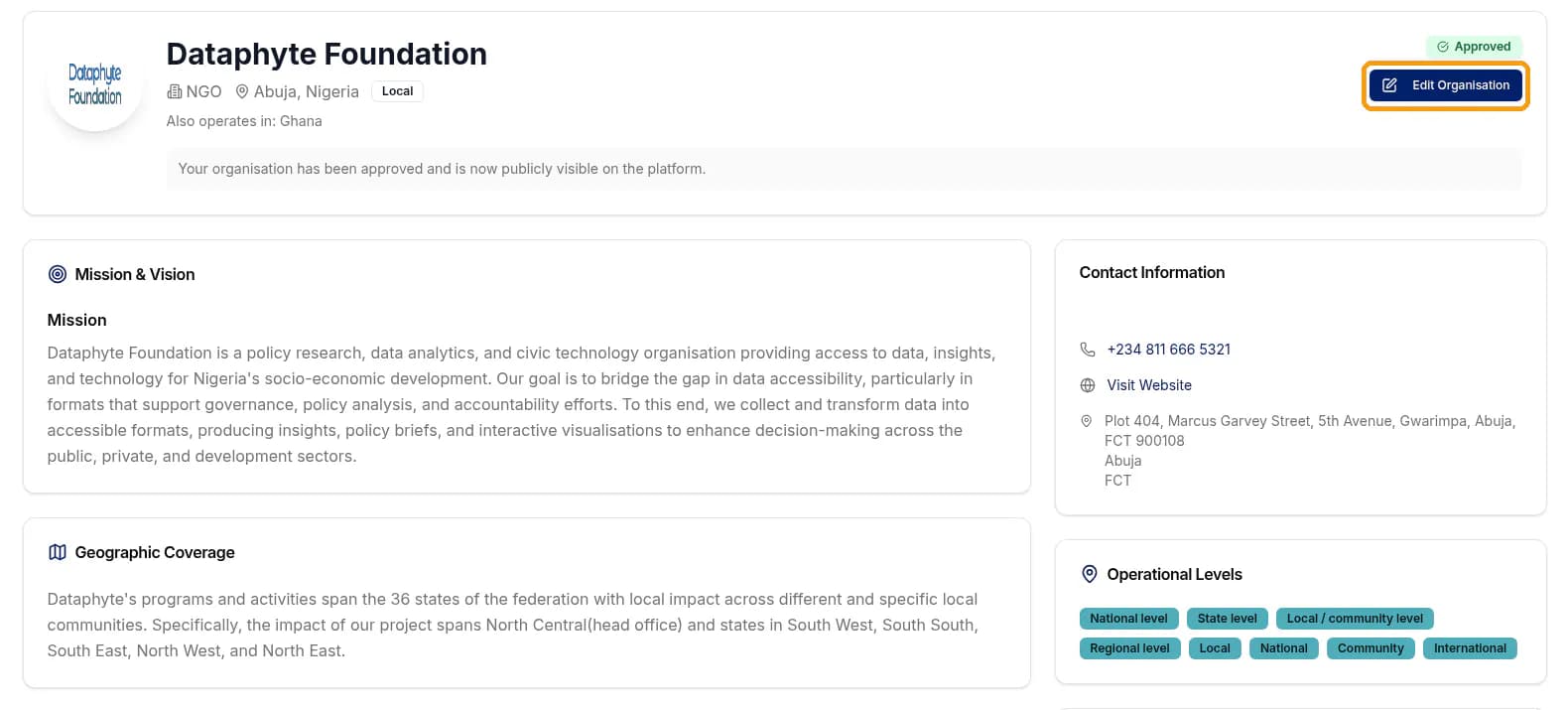
3. Click My Organisation in the sidebar.
You will see your full profile: Mission & Vision, Geographic Coverage, Focus Areas, Target Populations, Media & Communications, Contact Information, Operational Levels, Organisation Details, and more.
Edit your organisation profile (managers)
4. Click Edit Organisation.
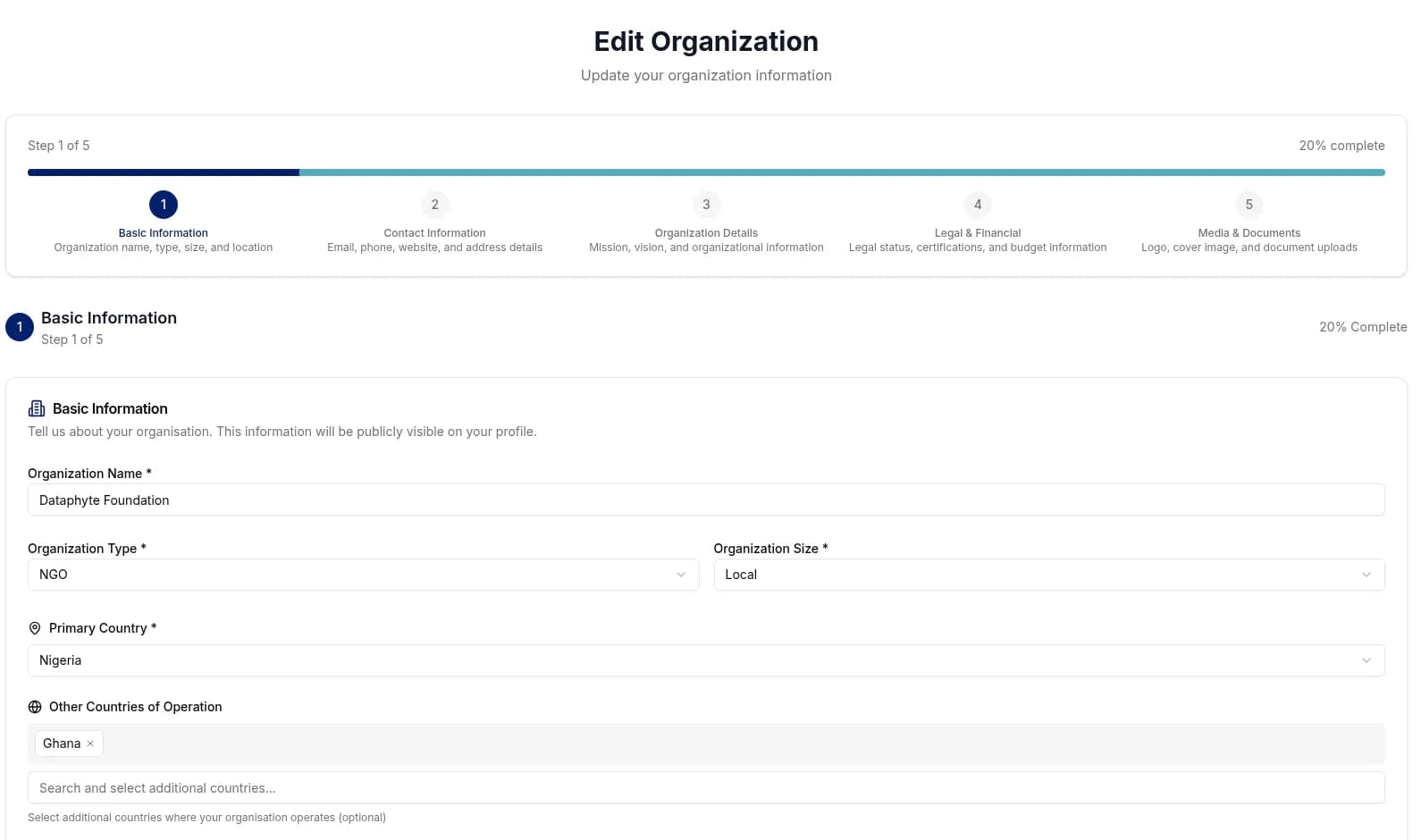
This opens the Edit Organization form. Editing the profile is usually done by your organisation's manager.
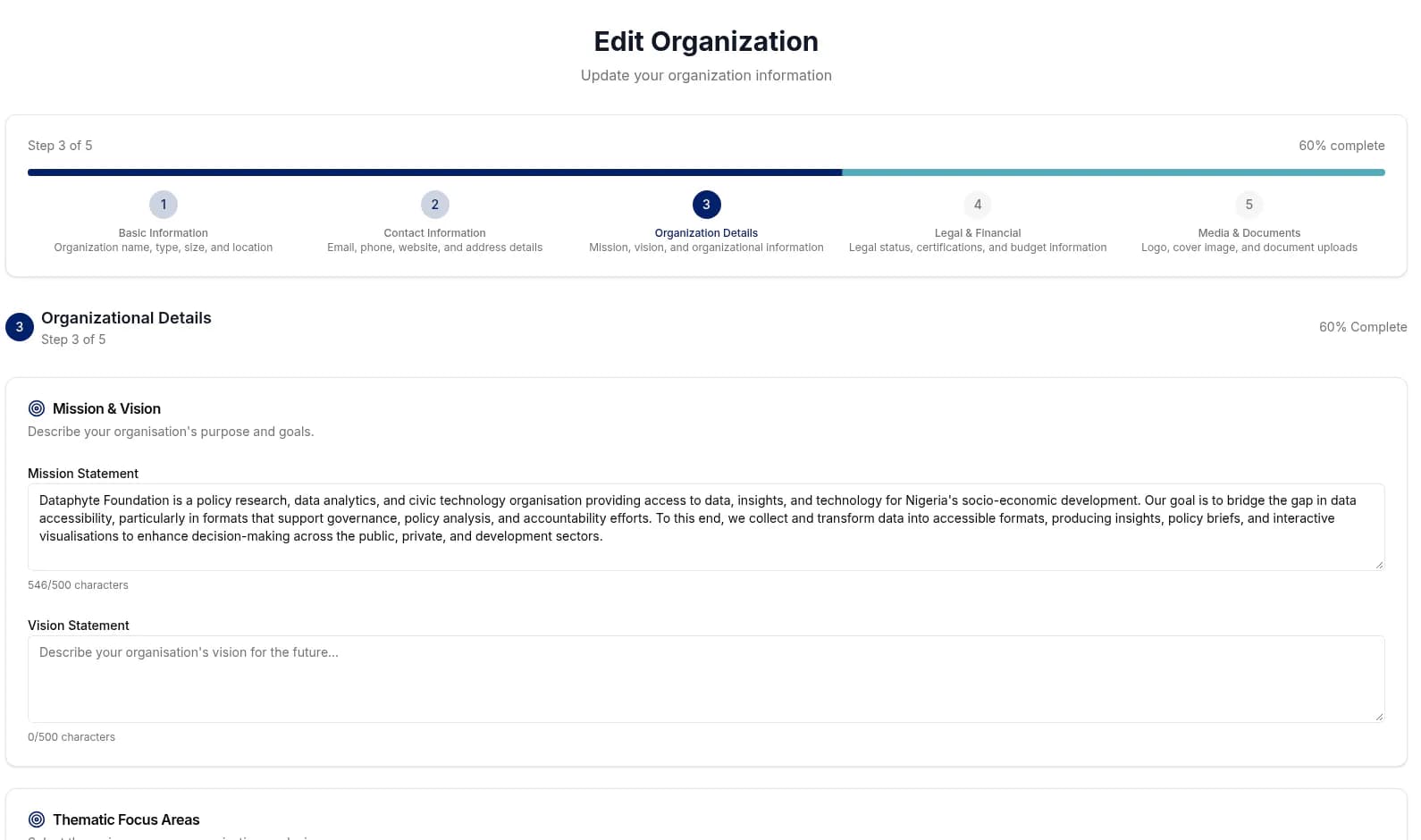
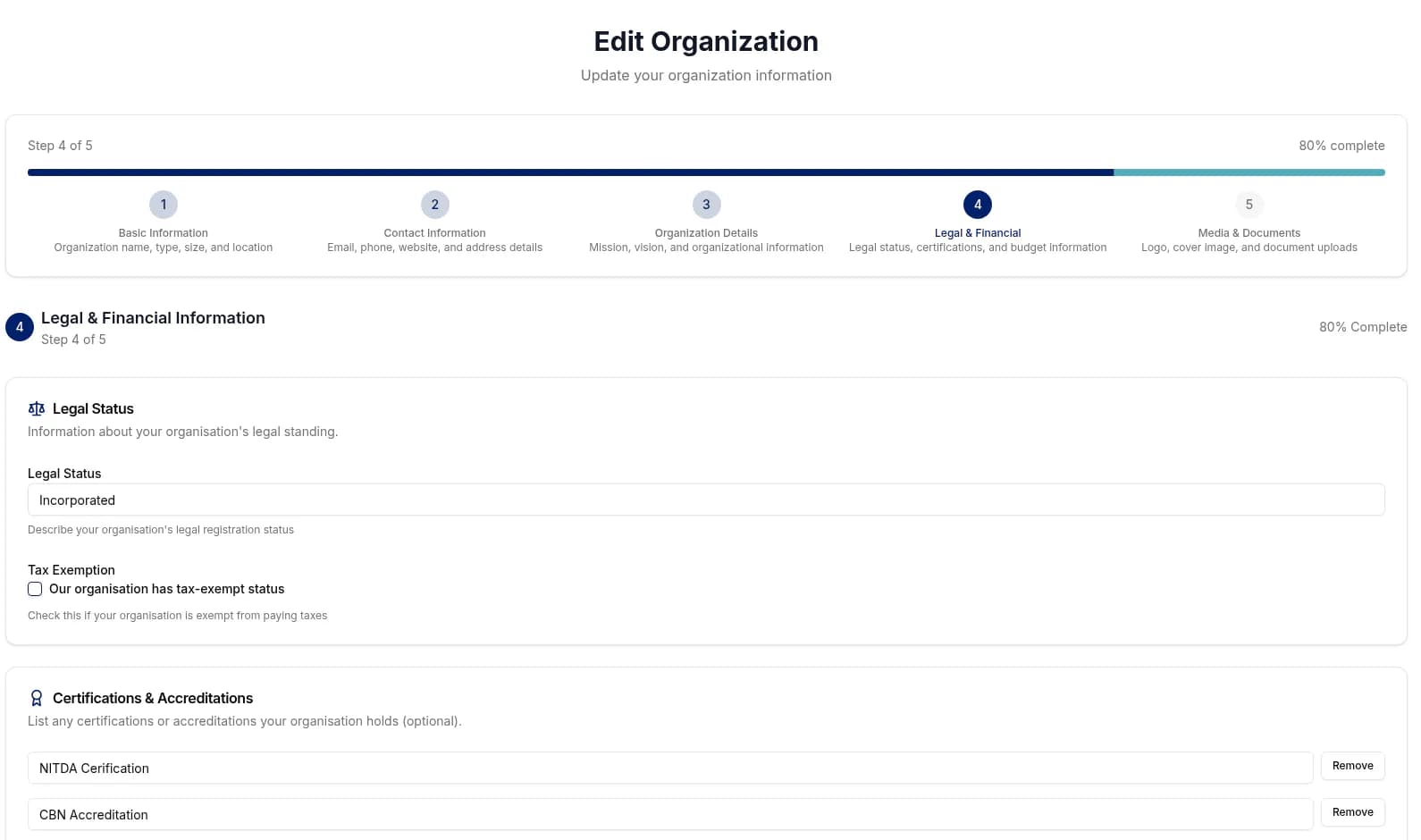
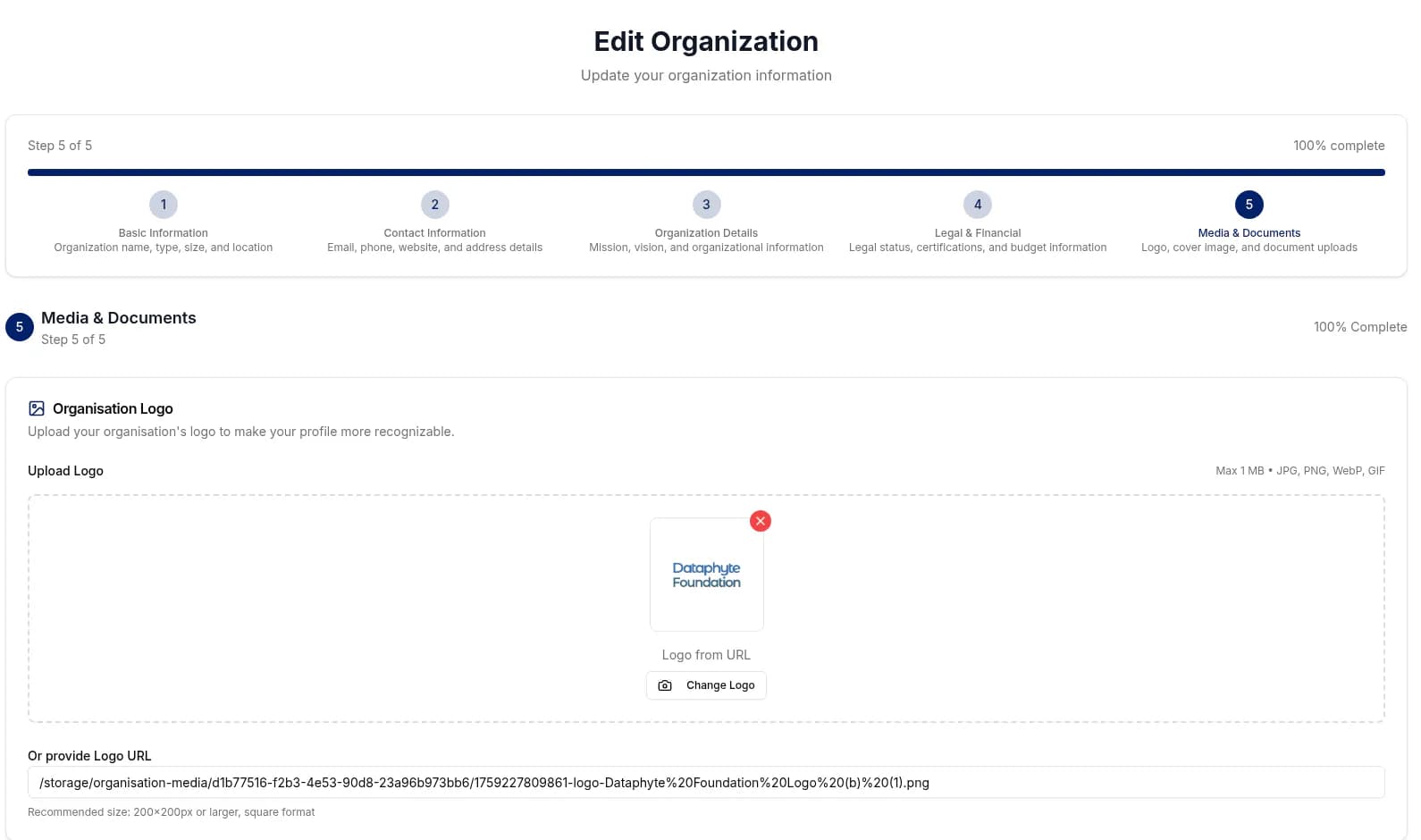
5. Work through the five steps.
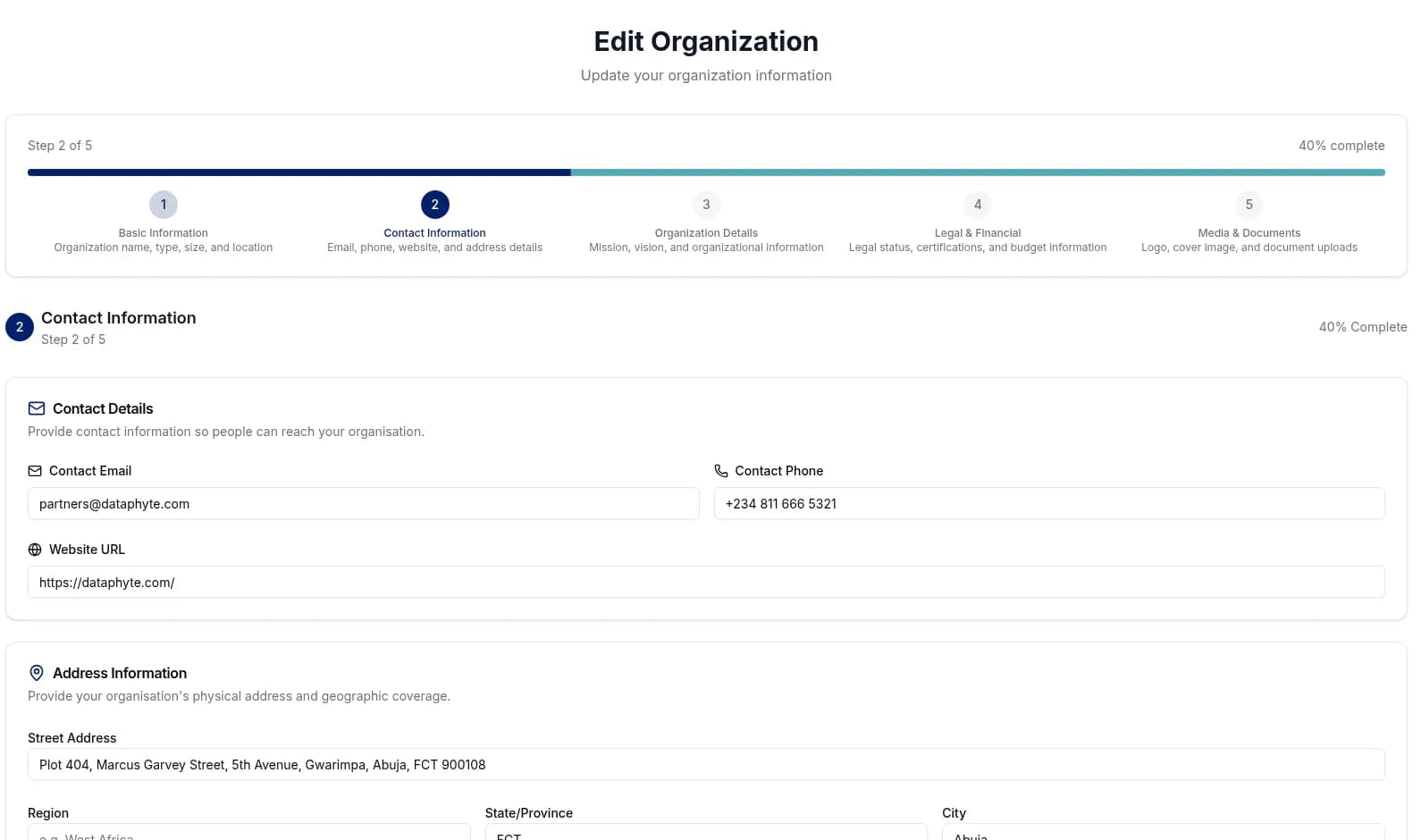
The form has five steps, and a progress bar shows how far you have got:
- Basic Information: name, type, size and location.
- Contact Information: email, phone, website and address details.
- Organization Details: mission, vision and other information about your organisation.
- Legal & Financial: legal status, certifications and budget information.
- Media & Documents: logo, cover image and document uploads.
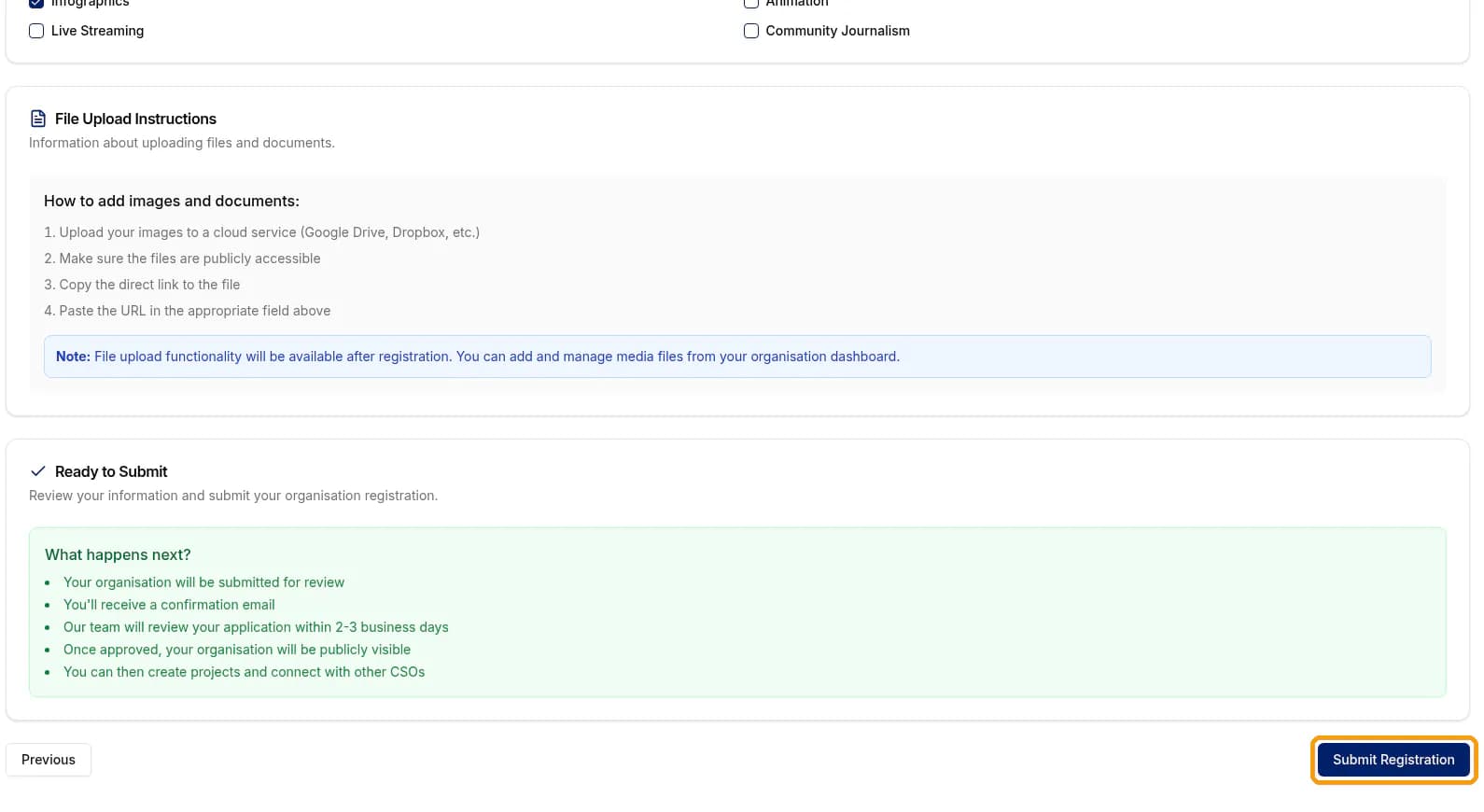
Continue moves you to the next step, but it does not save your changes. Your updates are submitted when you click Submit Registration on step 5.
6. Review and submit.
At the bottom of step 5 you will see Ready to Submit and a short What happens next note. This step has only Previous and Submit Registration — there is no Cancel button. Click Submit Registration when you are ready to save. If you are not ready to submit, use Previous to go back, or leave the form with the breadcrumb at the top of the page.
On a phone
Tap the Toggle Sidebar icon at the top-left of the dashboard to open the menu.
💡 Quick tips
- The Basic Information step tells you that what you enter "will be publicly visible on your profile", so check spelling and contact details carefully.
- A complete profile, with your focus areas, target populations and media platforms, helps other CSOs and funders find you.
- Continue only moves to the next step. Nothing is saved until you click Submit Registration on step 5.
- There's no separate profile or account settings page. For help with your account, use Report an Issue and choose Account or organisation profile (see Post 9).